


For structured product data and digital catalogs, a jewelry product video means one of two things: a 360 or 180 degree spin, or a short looped product clip. The single rule that overrides everything else is this: your video_link must point to a raw, publicly accessible video file, never a landing page or a login-gated player. Every platform spec you’ll read below (format, length, resolution) only matters once that one rule is satisfied.
TL;DR:
- Jewelry videos must link directly to a raw, publicly accessible file in formats like MP4, MPGs, or MOVs to meet platform specifications.
- Use at least 720p resolution, with 1080p recommended for detailed gemstone shots, and match aspect ratios to display context.
- Shooting guidelines emphasize proper lighting, macro focus, precise loop trimming, and color calibration to ensure true color and sparkle.
- Deliver assets with filenames and metadata aligned to SKUs and verify accessibility, licensing rights, and correct feed mapping before submission.
- Automate production of multiple formats from a high-frame-count master to optimize engagement and avoid reshooting as platform requirements evolve.
Table of Contents
- Technical File and Feed Specs for Jewelry Product Video
- Production Checklist for Jewelry Spins and Product Clips
- Interactive Spin, MP4 Loop, or Short Clip: Where Each Belongs
- How to Deliver Video Assets in Structured Product Data
- Metadata and File Naming That Keep Assets Matched to Products
- QA Checklist Before You Ship a Feed or Update a Catalog
- Lighting Techniques That Make Facets and Sparkle Read on Camera
- Camera Equipment and Settings for Small, Reflective Items
- Editing Jewelry Video Without Distorting True Color
- Platform Compliance for Google Shopping, Amazon, and Similar Feeds
- Field Notes on Fixing Supplier Video Submissions
- Get Your Jewelry Video Assets Feed-Ready With JewelCloud
- Sources
Technical File and Feed Specs for Jewelry Product Video
Feed ingestion is unforgiving. A file that looks perfect in your editing software can still bounce out of a feed if the container, aspect ratio, or hosting setup doesn’t match what the platform expects. Here’s what actually gets accepted.
Accepted formats generally include MP4, MPG, MOV, AVI, WMV, and FLV, with MP4 the safest default for compatibility across catalog viewers and configurators. Resolution should sit at 720p or higher. Below that, sparkle and facet detail turn into a blurry smear the moment a shopper zooms in.
- Format: MP4 preferred; MPG, MOV, AVI, WMV, and FLV also accepted by most feed systems
- Resolution: 720p minimum; 1080p recommended for anything showing gemstone detail
- Aspect ratio: 1:1 for catalog grids and configurators, 16:9 for desktop PDP viewers, 9:16 for mobile-first previews
- Duration: short loops generally run 10 to 15 seconds; full spins can run longer depending on frame count
- File size: keep spins and clips as small as detail allows; higher frame counts mean larger files, so compress deliberately rather than uploading raw exports
Statistic Callout: Feed video links must reference a raw, publicly accessible video file rather than a landing page, and merchants must hold the licensing rights to distribute that footage for marketing use. Miss either requirement and the asset gets rejected regardless of how good the footage looks.
One more thing suppliers overlook constantly: ownership. If a photography studio shot your spin footage on contract, confirm in writing that you hold distribution rights before that file goes into a retailer’s feed. Licensing disputes over feed media are more common than most brands expect, and they’re entirely preventable.

Production Checklist for Jewelry Spins and Product Clips
Jewelry is one of the hardest product categories to shoot well because it’s small, reflective, and covered in facets designed to bounce light in every direction. That’s exactly why a repeatable checklist matters more here than for almost any other product type.
- Light the piece, not the room. Use a controlled lightbox or tent setup with diffused sources on multiple sides. Direct, unshielded light creates hotspots that blow out metal and wash out stone color.
- Shoot one item per frame. Multi-item shots complicate cropping, background removal, and SKU matching later. Keep the turntable clean and centered.
- Choose your frame count deliberately. Practitioner guides recommend 24 frames as a lightweight baseline, 36 frames as the standard for most interactive viewers, and 72 frames for premium HTML5 viewers or Amazon’s native 360 view. More frames means smoother rotation and a bigger file, so match the count to where the asset will actually live.
- Use macro focus and, where possible, focus stacking. A single focal plane rarely captures both the prongs and the stone table in sharp detail on small pieces.
- Trim the loop point precisely. Any visible jump or lighting flicker where the spin restarts ruins the illusion of continuous rotation.
- Calibrate color before compressing. Compress after you’ve locked white balance and color grading, never before, or you’ll bake in inaccuracies.
- Build a multi-format master. Export one high-resolution master, then derive your MP4 loop and platform-specific crops from it rather than reshooting for each channel.
Pro Tip: Shoot your master pass at the highest frame count you’ll ever need, even if most channels only require 24 frames today. Downsampling from 72 frames to 24 is trivial. Reshooting later because a new configurator demands smoother rotation is not.
Interactive Spin, MP4 Loop, or Short Clip: Where Each Belongs
Not every asset belongs everywhere. An interactive 360 viewer, an MP4 spin loop, and a short product clip solve different display problems, and mixing them up wastes both budget and bandwidth.
- Interactive 360 viewer: best for product detail pages and configurators where shoppers expect to drag and rotate the item themselves; requires the full frame-count master and more setup, but delivers the deepest engagement.
- MP4 spin loop (10 to 15 seconds): the workhorse for catalog viewers, thumbnails, and any surface where autoplay makes more sense than click-and-drag interaction.
- Short product clip: best for mobile previews and quick-scroll catalog browsing, where a shopper needs a glance-and-move-on impression rather than a full rotation.
The business case for investing in the interactive tier is real. Vendor reports on 360 product viewers cite engagement and conversion lifts, with some retailer case studies showing double-digit gains when shoppers can manipulate a piece before buying. The smart approach is producing one master and exporting all three formats from it, not shooting each separately.
How to Deliver Video Assets in Structured Product Data
Getting the footage right is half the job. The other half is making sure the feed actually points to it correctly, and this is where most rejections happen.
Use the video_link attribute (or your platform’s equivalent) and confirm the URL resolves to the raw file directly, not to a webpage that embeds a player. Google’s product data specification is explicit that video links must be raw files, publicly accessible without login, and that requirement holds across most major marketplace feeds.
- Keep filenames and URLs consistent with your SKU naming convention
- URL-encode any special characters in the filename or path
- Serve every asset over HTTPS
- Host on a public CDN or webserver, never behind a signed or authenticated link
- Check that
robots.txtisn’t blocking the asset’s directory
Statistic Callout: Google can automatically generate 180 or 360 degree spins from at least five high-resolution product images, and these auto-generated spins can take up to two weeks to appear on Search. This is a genuinely useful fallback for suppliers without spin footage yet, but it’s not a substitute for a real 3D gITF model, and it won’t produce the interactive depth a native model offers.
Submission generally happens through a standard product feed or the Content API, and the most common failure mode in either path is the same: a URL that points to a page instead of a file.
Metadata and File Naming That Keep Assets Matched to Products
Automated workflows don’t tolerate ambiguity. A video file named “spin_final2.mp4” tells an ingestion system nothing about which SKU it belongs to, and mismatches like that are what cause a configurator to show the wrong ring on the wrong page.
- Name files by SKU or variant ID, exactly matching the identifier used elsewhere in your product feed.
- Attach essential metadata to every video: caption, duration, aspect ratio, and rights holder.
- Version your assets so a reshoot doesn’t silently overwrite a working file before the new one is verified.
- Keep a fallback still image ready for any SKU where video hasn’t been produced yet, so the catalog entry never shows a broken player.
- Assign clear ownership between supplier and retailer for who updates and syncs the asset when a product changes.
QA Checklist Before You Ship a Feed or Update a Catalog
Run this before every feed submission, not just the first one. Specs drift, hosting changes, and a file that passed last quarter can silently fail today.
- Confirm public accessibility. Open the raw URL in an incognito browser window with no login. If it doesn’t load, the feed won’t accept it.
-
Check
robots.txton the hosting domain to make sure the video directory isn’t blocked. - Verify playback and looping on both desktop and a mobile device, since a clean loop on one can stutter on the other.
- Recheck spec compliance: format, file size, aspect ratio, resolution, and duration against the platform’s current documentation.
-
Confirm feed mapping so each
video_linkpairs with the correct SKU, not a neighboring variant. - Reconfirm licensing rights for every asset before it goes live in a retailer-facing feed.
Pro Tip: Build this checklist into a spreadsheet with one row per SKU. It sounds tedious until the first time it catches a mismatched video before a retailer catalog goes live with the wrong ring spinning under the right listing.
Lighting Techniques That Make Facets and Sparkle Read on Camera
Jewelry lighting is a different discipline from lighting most other products, because the goal isn’t to illuminate the piece, it’s to control exactly where light bounces off it. A diamond doesn’t sparkle because it’s bright. It sparkles because light enters, refracts internally, and exits at specific angles, and your lighting setup either supports that or kills it.
A lightbox or diffusion tent with multiple soft sources is the standard setup, positioned to surround the piece rather than hit it head-on. Direct point sources create harsh, unnatural glare on polished metal and can wash out colored stones entirely. Diffused, layered light lets facets catch and release light naturally as the turntable rotates, which is what produces genuine sparkle on camera instead of a flat blown-out highlight.
Black or dark backgrounds tend to make white metals and diamonds pop, while lighter backgrounds work better for yellow gold and warmer stones. Consistency across your entire catalog matters here as much as the lighting itself. If half your SKUs are shot on white and half on black, your catalog looks assembled rather than curated, and retailers notice.
A small turntable synced to your capture interval keeps rotation speed even, which matters more than it sounds. Uneven rotation speed shows up as a subtle stutter in the final loop, and on a reflective surface, that stutter is far more noticeable than it would be on a matte product.
Camera Equipment and Settings for Small, Reflective Items
Small subjects punish sloppy equipment choices fast. A macro lens, or a standard lens with an extension tube or close-up diopter, is close to mandatory for jewelry, since standard product photography lenses simply can’t focus close enough to fill the frame with a ring or a pair of earrings.
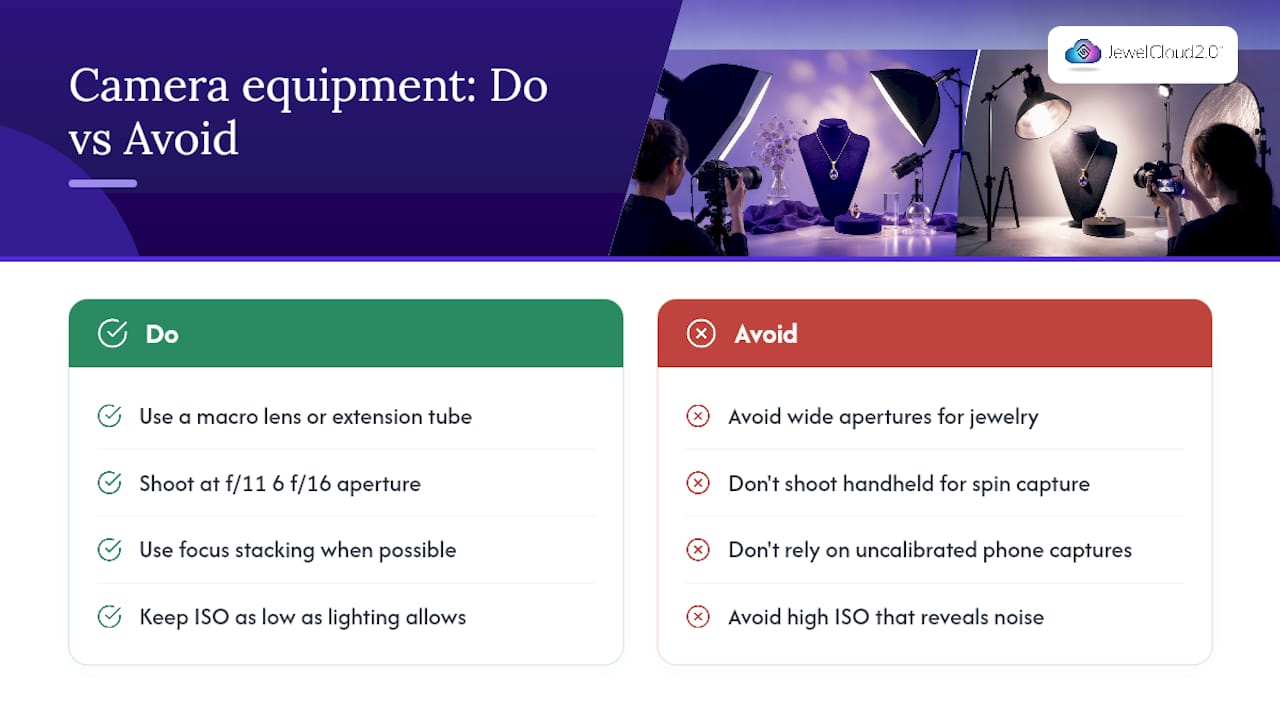
Shoot at a narrow aperture, generally f/11 to f/16, to maximize depth of field across the piece. Wide apertures look great for portraits but leave half a ring band or a stone’s far edge out of focus, which reads as a production mistake rather than a stylistic choice. If your setup allows focus stacking, combining multiple exposures at different focus points into one sharp composite, use it. It solves the depth-of-field problem more completely than aperture alone ever will on pieces with real dimension.
Keep ISO as low as your lighting allows to avoid noise showing up in fine metal texture and stone facets. A tripod or motorized turntable rig is not optional for spin capture. Handheld jewelry video is nearly always visibly unstable once you’re rotating a piece frame by frame.
Controlled studio lighting paired with focus stacking consistently outperforms informal phone captures for jewelry specifically, unless the mobile workflow has been deliberately calibrated for macro 360 work. A phone can work in a pinch. It rarely produces catalog-grade results without significant extra setup.
Editing Jewelry Video Without Distorting True Color
Color accuracy is the one place where jewelry post-production has zero margin for creative license. A ring that looks slightly warmer or cooler in the video than it does in person generates returns, and returns on fine jewelry are expensive in a way they simply aren’t for apparel.
Calibrate white balance during the shoot using a gray card or color checker, not afterward in software. Post-production color correction can compensate for minor drift, but it can’t rebuild accuracy that was never captured. Once footage is graded and confirmed accurate, that’s the point to compress, not before. Compressing early and correcting color after bakes inaccuracies into the final file.
Loop trimming deserves careful attention too. Find the exact frame where rotation completes a full cycle and trim there, because even a one or two frame mismatch creates a visible flicker at the loop point that undermines the polish of an otherwise clean spin. Keep your compression settings consistent across your entire catalog rather than optimizing file by file, since inconsistent compression is what makes some SKUs look sharp while neighboring ones look muddy on the same page.
Resist the temptation to boost saturation or contrast to make stones “pop” artificially. It might look striking in isolation, but it sets up a mismatch between the video and the physical product that shows up the moment a piece arrives at a customer’s door.
Platform Compliance for Google Shopping, Amazon, and Similar Feeds
Every major platform has its own rules for what video content it will accept into a listing, and those rules change often enough that a spec sheet from last year can quietly go stale. The raw-file requirement covered earlier applies broadly, but platform-specific quirks still trip up suppliers who assume one spec fits everywhere.
Google Shopping enforces the raw-file and public-accessibility rules strictly, and it also has an auto-spin feature that only activates when image sets meet its angle and quality requirements, which makes consistent, same-shoot image sets worth the extra care during capture. Amazon’s native 360 view has its own frame-count expectations, generally favoring the higher end of the 36 to 72 frame range for smooth rotation, and it has historically been stricter about background and cropping consistency than some smaller catalog platforms.
Rights and licensing enforcement varies by platform too, but the underlying principle holds everywhere: you need documented distribution rights for any footage you submit, whether you shot it in house or commissioned it. A detailed feed setup walkthrough is worth reviewing before your first bulk submission, since attribute-level mistakes are far easier to catch before a feed goes live than after a retailer flags a broken listing. When in doubt, check the current documentation for each platform you’re submitting to rather than relying on last year’s specs from a blog post, including this one.
Field Notes on Fixing Supplier Video Submissions
The most common mistake I see in supplier feed submissions isn’t a bad camera or bad lighting. It’s a video_link pointing to a marketing landing page instead of the raw file, and it’s almost always an easy fix once someone catches it. Suppliers spend real money on professional spin footage, then lose the entire investment at the ingestion step because the URL structure was wrong.
Catalog-ready video, submitted correctly, tends to reduce returns because shoppers know exactly what they’re buying before it ships. It also speeds up merchandising, since a retailer working from standardized product data doesn’t need to chase down missing or broken assets SKU by SKU.
— Anthony
Get Your Jewelry Video Assets Feed-Ready With JewelCloud
Jewelcloud solves the exact problem this guide walks through: getting video assets correctly matched to SKUs, hosted where feeds can actually read them, and distributed to the retailers who need them, without your team rebuilding that pipeline from scratch every time a new collection ships.
For suppliers and manufacturers, that means your spins and product clips get mapped to structured product data automatically instead of living in a folder disconnected from your catalog. Retailers pulling from the platform get consistent, verified assets rather than a mix of broken links and mismatched files. If your team builds product pages or manages a supplier’s digital presence, Jewelcloud’s vendor web design services handle the technical side of presenting catalog-ready video correctly, and vendor membership opens distribution to retail partners actively sourcing standardized product data. Start by reviewing what a vendor membership includes and get your product video assets in front of retailers who are ready to list them.
Sources
- Product data specification - Google Merchant Center Help
- 360° Jewellery Photography & Spin Videos: Complete Guide For Ecommerce — Uniqs Studio
- 7 Benefits of a 360 Product Viewer for Online Jewelry Stores — Threekit